Setup and configuration
Kroconnect
nShift Delivery
Last modified:
nShift Delivery handles the fulfillment side of your nShift integration: shipment booking, label generation and document retrieval. Booking runs through a Kroconnect workflow, and the resulting tracking ID, shipping labels and documents are made available directly on the order edit page.
This page is the full reference. If you’re setting up nShift Delivery for the first time, start with Getting started with nShift Delivery.
nShift Delivery books orders whose shipping line carries an nShift service ID. That service ID can come from two places:
- nShift Checkout 2.0, the Kroconnect shipping method that shows nShift’s services in your checkout.
- Kustom Shipping Assistant connected to nShift, when you use nShift’s own integration with Kustom Checkout. See Orders from Kustom Shipping Assistant.
Prerequisites
- An nShift account with nShift Delivery configured.
- Your nShift sender Quick ID.
- A Kroconnect subscription that includes nShift Delivery.
- A Book shipment Workflow ID. The booking workflow is set up for you by Krokedil — contact us to get it.
- The Kroconnect WooCommerce Connector plugin installed and activated.
Integration settings
Go to WooCommerce → Kroconnect → nShift Delivery to configure the integration.
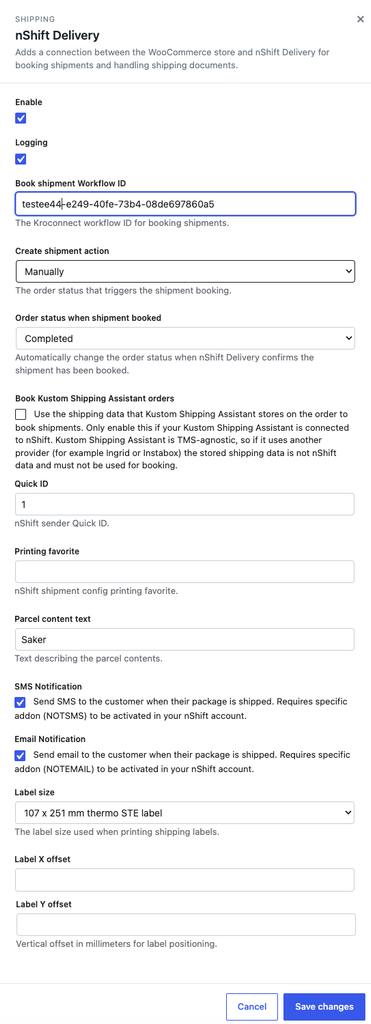
| Setting | Description |
|---|---|
| Enable | Activates the nShift Delivery integration. |
| Logging | Enables logging of requests and responses for troubleshooting. |
| Book shipment Workflow ID | The Kroconnect workflow ID used to book shipments. Provided by Krokedil. |
| Create shipment action | The order status that automatically triggers shipment booking. Set to Manually to only book via the Book shipment button or the bulk action. |
| Order status when shipment booked | Optionally change the order status automatically once nShift confirms the shipment is booked. Leave it at No status change to keep the status as it is. |
| Book Kustom Shipping Assistant orders | Book orders using the shipping data Kustom Shipping Assistant stores on the order. Only enable this if your Kustom Shipping Assistant is connected to nShift. See Orders from Kustom Shipping Assistant. |
| Quick ID | Your nShift sender Quick ID. Used as the default sender for all shipments. Can be overridden per service. |
| Printing favorite | Your nShift printing configuration identifier. Can be overridden per service. |
| Parcel content text | Default text describing the contents of the parcel. Can be overridden per service. |
| SMS Notification | Send an SMS to the customer when their package is shipped. Requires the NOTSMS addon in your nShift account. |
| Email Notification | Send an email to the customer when their package is shipped. Requires the NOTEMAIL addon in your nShift account. |
| Label size | The format used when generating shipping labels. |
| Label X offset | Horizontal print offset in millimeters, for fine-tuning label positioning. |
| Label Y offset | Vertical print offset in millimeters, for fine-tuning label positioning. |
Available label sizes:
- Single A5 label
- Two A5 labels on A4 paper
- Normal A4 paper
- 107 × 251 mm thermo STE label
- 107 × 190 mm thermo label
- 107 × 72 mm thermo label
Per-service configuration
Each shipping method instance can have service-specific settings that override the global nShift Delivery defaults. The settings are available on:
- nShift Checkout 2.0 shipping methods, always.
- Kustom Shipping Assistant shipping methods, when Book Kustom Shipping Assistant orders is enabled.
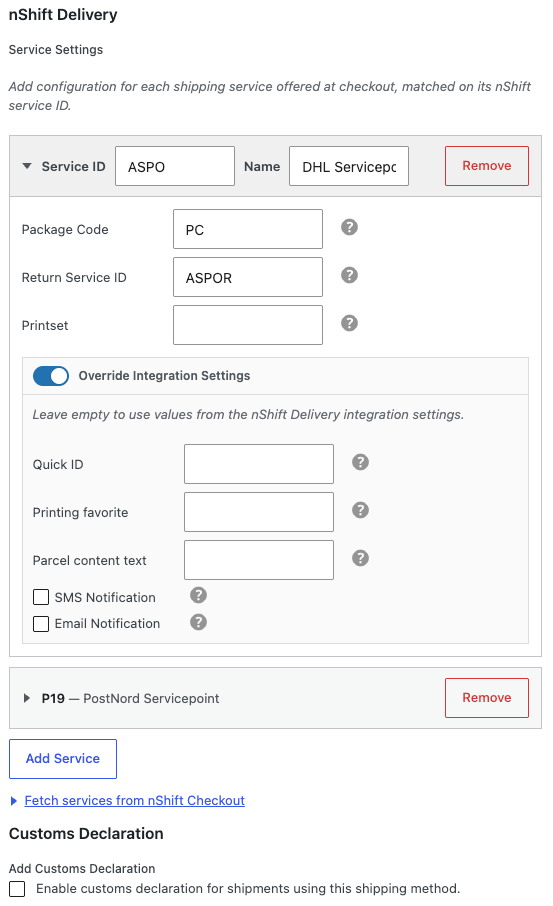
Go to WooCommerce → Settings → Shipping, open the shipping zone and edit the shipping method. Under the nShift Delivery section, click Add Service once for each nShift service you want to configure. Each entry is matched on its nShift service ID, so it applies to every order where the customer picked that service.
| Setting | Description |
|---|---|
| Service ID | The nShift service ID this configuration applies to, for example ASPO. Suggestions are offered as you type — see Finding service IDs. |
| Name | A display name for internal reference. Filled in for you when you pick a suggested service and the field is empty. |
| Package Code | The nShift package code sent when creating the shipment. |
| Return Service ID | The nShift service ID to use for return shipments, if applicable. Offers the same suggestions as Service ID. |
| Printset | The printset used for customs declaration label printing for this service. |
Under Override Integration Settings you can replace the global values for this service only. Leave a field empty to use the value from the integration settings.
| Setting | Description |
|---|---|
| Quick ID | Override the global Quick ID for this service. |
| Printing favorite | Override the global printing favorite for this service. |
| Parcel content text | Override the global parcel content text for this service. |
| SMS Notification | Override the global SMS notification setting for this service. |
| Email Notification | Override the global email notification setting for this service. |
Finding service IDs
Note! Service ID suggestions and the Fetch services from nShift Checkout panel require a version of the Kroconnect WooCommerce Connector later than 2.29.0.
The Service ID and Return Service ID fields suggest the nShift services your store has already seen, shown as for example ASPO — Pick up at service point (DHL). You don’t have to look the IDs up in nShift yourself. The list is filled automatically from:
- the services nShift Checkout 2.0 returns at checkout,
- orders placed through Kustom Shipping Assistant (when Book Kustom Shipping Assistant orders is enabled),
- your latest 200 orders, read once in the background the first time you open the settings,
- services you fetch by hand, see below.
The suggestions are a convenience only. If you type a service ID that isn’t on the list, a notice reminds you to check that it is spelled correctly and active in nShift — but the ID can still be saved and booked.
Fetching services from nShift Checkout. On nShift Checkout 2.0 shipping methods, a Fetch services from nShift Checkout panel appears under the service entries. It runs a sample shipping query with this shipping method’s Connection ID and adds the returned services to the suggestions.
- Save a Connection ID for the shipping method first. The panel asks for it until you have.
- Open the panel and pick a Country and Postcode. They default to your store address.
- Adjust Weight (kg) and Order value if needed. They default to 1 kg and 500.
- Click Fetch services. The panel shows how many services nShift returned and how many of them were new.
Which services nShift returns depends on the destination, the weight and the order value, so run the fetch again with other values to find more — for example a heavier parcel or another country you ship to.
Clear suggestions empties the suggestion list. Services you have already added to shipping methods are not affected.
The fetch panel is not available on Kustom Shipping Assistant shipping methods, since they have no nShift Connection ID. There, the suggestions come from your Kustom orders. On a new store with no orders yet, enter the service IDs from your nShift account by hand.
Customs declaration
You can also enable customs declaration per shipping method instance.
| Setting | Description |
|---|---|
| Add Customs Declaration | Enable customs data on shipments using this shipping method. |
| Invoice Type | Standard or Proforma invoice. |
| Import/Export Type | The purpose of the shipment for customs: Other, Sample, Documents, Gift, Internal, Permanent, Re-export, Return or Temporary. |
| Terms Code | The trade terms code (for example DAP or DDP) applied to the customs documentation. |
Booking a shipment
Automatic booking
If you have set a Create shipment action (for example Processing), the shipment is booked automatically when the order reaches that status. No manual action is required.
Manual booking
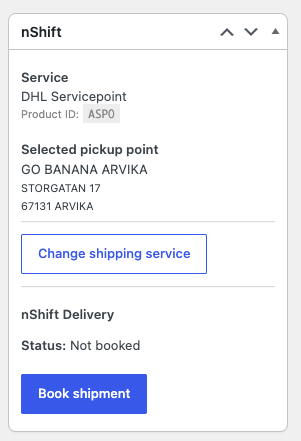
On the order edit page, the nShift Delivery box shows the current shipment status. If the order has not been booked yet, click Book shipment to send the booking to Kroconnect. An order note confirms that the request was sent.
To avoid duplicate bookings, the button is hidden for 5 minutes after each booking attempt.
When an order cannot be booked
If the box says Cannot be booked, the explanation underneath tells you why:
| Message | What to do |
|---|---|
| No nShift service is set on this order’s shipping line, so there is nothing to book. | The order was not placed with nShift Checkout 2.0 or Kustom Shipping Assistant. With the nShift Checkout 2.0 integration enabled, you can use Fetch available nShift services in the order’s nShift box to pick a service. |
| Booking of Kustom Shipping Assistant orders is turned off in the nShift Delivery settings, so this order cannot be booked. | Enable Book Kustom Shipping Assistant orders — but only if Kustom is connected to nShift. |
| The shipping option selected in Kustom carries no nShift service ID… | Some Kustom options, typically certain home deliveries, arrive without a service ID. A developer can map them with the kroconnect_nshift_delivery_kustom_service_id filter. |
| The nShift service from Kustom cannot be placed on a shipping line… | The order needs either a shipping line added by Kustom Shipping Assistant, or exactly one shipping line. |
If the box instead says Configure the Book shipment Workflow ID in settings to enable booking, the integration settings are incomplete.
After booking
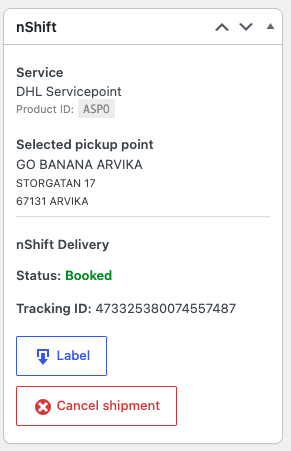
Once nShift confirms the shipment, the box updates to show:
- Tracking ID, with a Track shipment link.
- Download buttons for all available documents, which may include:
- Shipping label
- Customs document
- Additional carrier documents
If an order has multiple labels, they are merged into a single PDF for convenient printing.
If you set an Order status when shipment booked, the order status changes at this point, with an order note saying so.
Bulk actions
From the WooCommerce order list, the following bulk actions are available:
- Book nShift Delivery shipments — book shipments for multiple orders at once.
- Open nShift Delivery labels — open the shipping labels for the selected orders in a single PDF.
- Open nShift Delivery customs documents — open the customs documents for the selected orders in a single PDF.
Cancelling a shipment
A booked shipment can be cancelled from the order edit page using the Cancel shipment button in the nShift Delivery box. This removes the booking data from the order so it can be booked again if needed.
Note! The shipment in nShift Delivery is currently not deleted or cancelled by this action. Cancel it in nShift as well if it should not be sent.
Orders from Kustom Shipping Assistant
If your store uses Kustom Checkout with Kustom Shipping Assistant connected to nShift — nShift’s own integration, for either nShift’s older or newer checkout solution — the shipping choice never passes through the nShift Checkout 2.0 shipping method. Kustom stores the selected option on the order instead, and the shipping line itself carries no nShift data.
With Book Kustom Shipping Assistant orders enabled, nShift Delivery reads that data and writes the service ID and the selected pickup point onto the shipping line, using the same fields nShift Checkout 2.0 does. From there, booking works exactly as for any other order. This happens when Kustom has processed the payment, and again when an order is about to be booked, so orders placed before you enabled the setting can be booked too.
Important! Kustom Shipping Assistant can be connected to other shipping providers than nShift, such as Ingrid or Instabox. Only enable the setting if yours is connected to nShift. Otherwise the stored data is not nShift data, and booking with it would send another provider’s product IDs to nShift.
This is not the same thing as Kroconnect’s own Kustom Shipping Assistant integration, where Kroconnect acts as the shipping provider Kustom asks for shipping options.
A few things to know:
- The shipping line Kustom data is written to is the one added by the Kustom Shipping Assistant shipping method. If there is none, the order’s only shipping line is used. An order with several shipping lines and none from Kustom cannot be booked.
- Changing the service by hand wins. If the nShift Checkout 2.0 integration is also enabled and you pick another service on the order with Change shipping service, the order is marked as manually mapped. The Kustom data is then never written back over your choice.
- Turning the setting off also stops booking of orders whose service was already copied from Kustom.