Specter
Plugin
WooCommerce to Specter – mapping shipping methods
Last modified:
How it works
Mapping shipping methods is mainly used if you have an integration from Specter onward to a TA/WMS. This way, a shipping method in WooCommerce can be tied to a specific delivery method at your shipping provider.
Shipping method mapping is part of the order sync, which means an extra parameter related to the delivery method is sent along whenever a new order is sent to Specter.
Mapping a shipping method
The text below describes the default logic for mapping delivery methods. This isn’t the only option — by contacting Kroconnect, we can adjust the workflow mapping to use an alternative logic, for example matching on other WooCommerce fields instead of the shipping method name. Get in touch and we’ll help set this up.
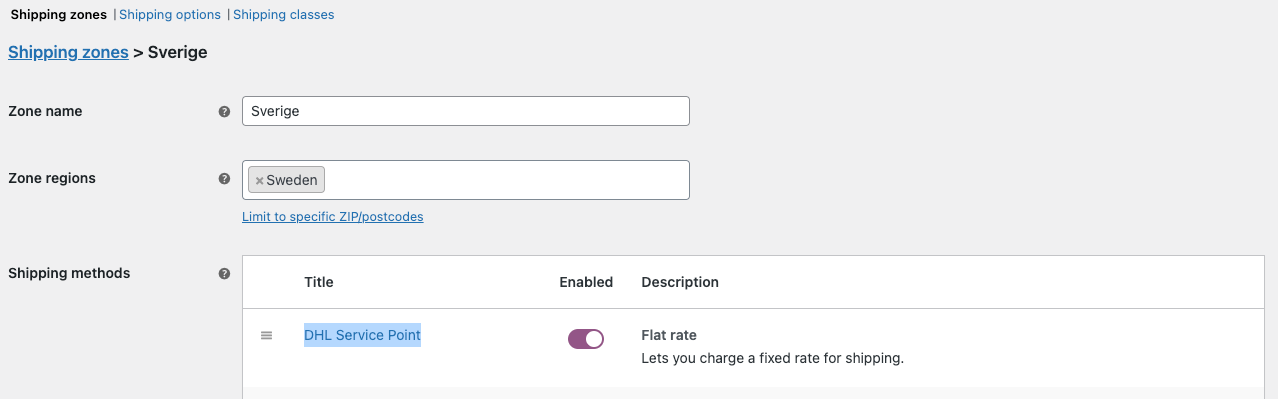
- Start from the name of the WooCommerce shipping method you want to map. Use the method’s title as configured in the shipping zone — the name customers see at checkout. If you later rename the method, remember to update the External key in Specter to match.
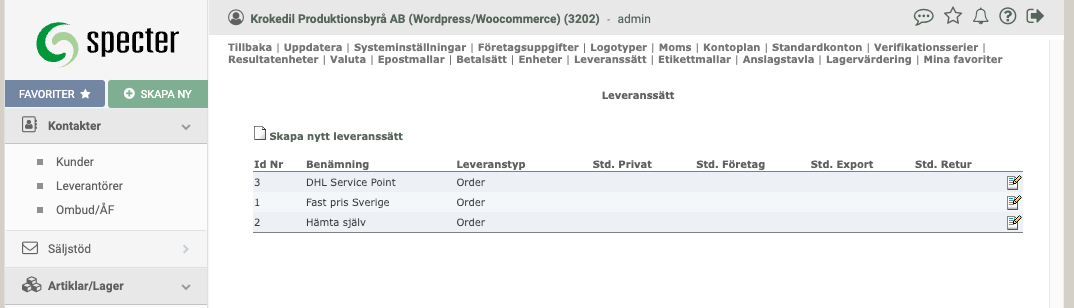
- Log in to your Specter account and navigate to My settings → Delivery methods.
- In the External key (“Extern nyckel”) field, enter the same text as the shipping method’s name in WooCommerce, except that uppercase letters are converted to lowercase and spaces are converted to underscores (
_). Example:DHL Service Pointbecomesdhl_service_point.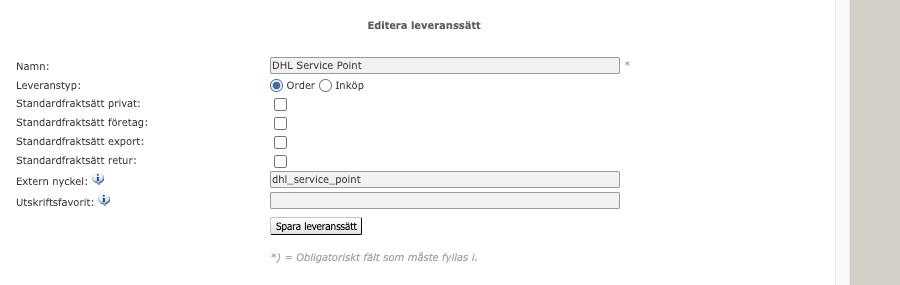
- Place an order in WooCommerce that is sent to Specter.
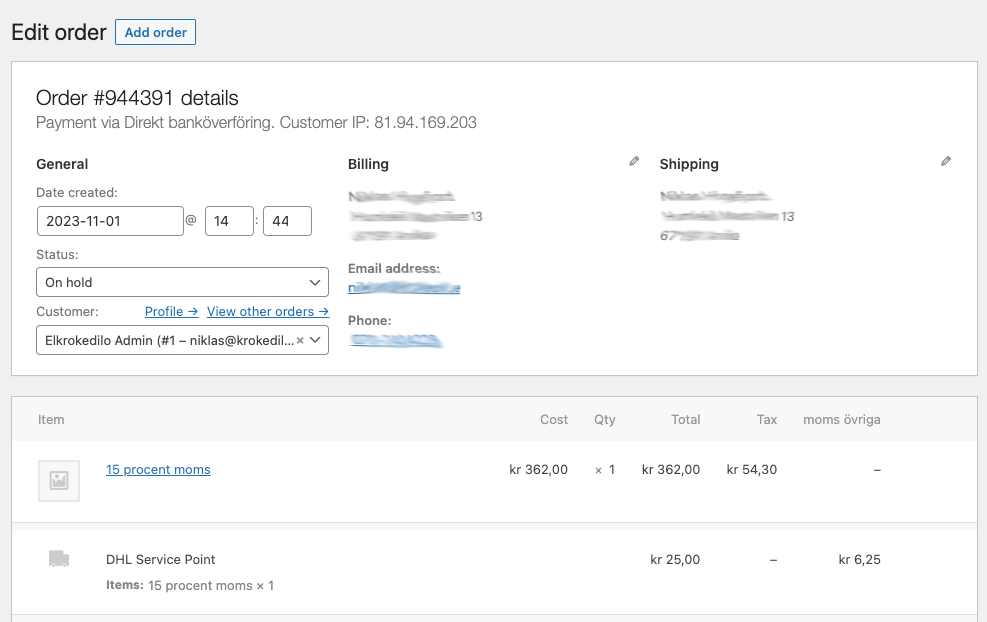
- Verify that the shipping method appears under Delivery methods in the order in Specter.
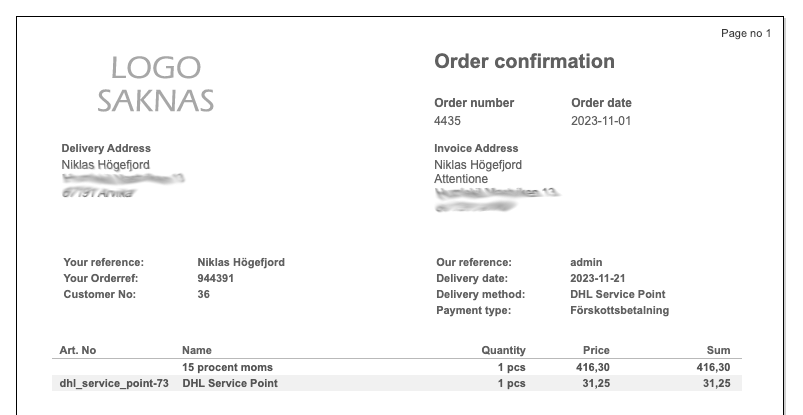
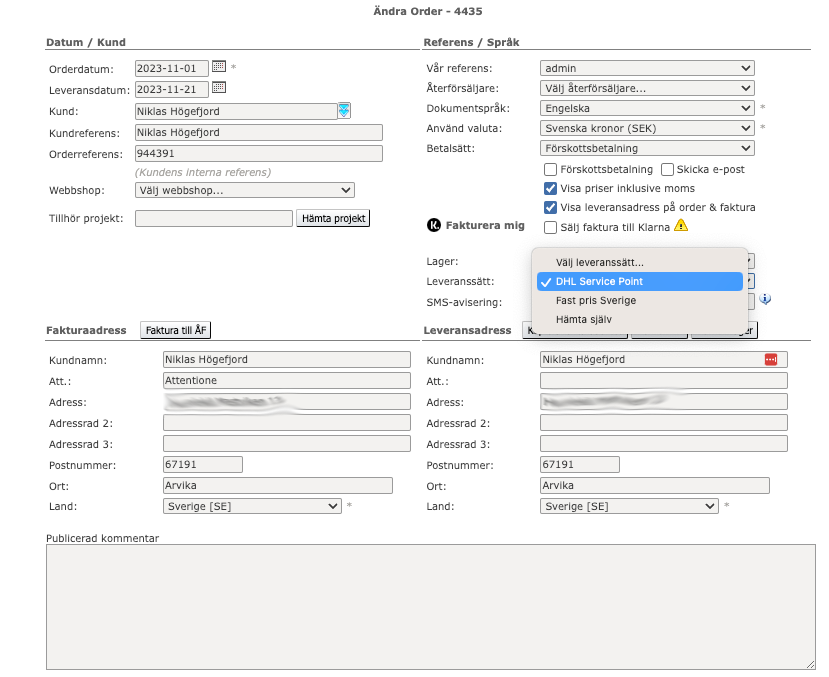
If your shipping method name contains special characters (
&, parentheses, etc.), the conversion rule above may not be enough — keep names simple, or contact us so we can adjust the workflow mapping for your case.
If the External key doesn’t match, the order still syncs to Specter and the prices match correctly — only the delivery method is left empty on the Specter order.