Specter
Kroconnect
Specter to WooCommerce – stock level sync
Last modified:
Activation of the workflow for syncing stock levels from Specter to WooCommerce is currently done with the help of Kroconnect staff.
Obligatoriska inställningar
- For communication between the systems to work without issues, article numbers must not contain å, ä, ö or special characters (such as
,.&%).
How the sync works
Stock level changes made to articles in Specter are reported back to WooCommerce. It is the available (“disponibla”) stock in Specter that updates the product in WooCommerce. Specter is the master for all stock level logic. Which Specter warehouse to use for the sync is specified in the settings of your Specter Connection in Kroconnect.
Whenever a stock level changes in Specter — whether from a manual adjustment, a goods-in, a POS sale, or an order — the update reaches WooCommerce through the following flow:
- Specter sends a signal to Kroconnect that a change has occurred in the system.
- Kroconnect receives the signal, responds with a
200 OKHTTP response, and then immediately requests information about all products where a stock level change has been made. - Specter sends this information to Kroconnect.
- Kroconnect processes the information and updates the stock level on the matching products in WooCommerce.
The sync typically happens within moments — in most cases the change is reflected in WooCommerce within a minute. The exact time depends on the current workload of both Specter and Kroconnect.
Product matching: products are matched between the systems by article number. If a Specter article number has no matching WooCommerce product, nothing is updated for that article.
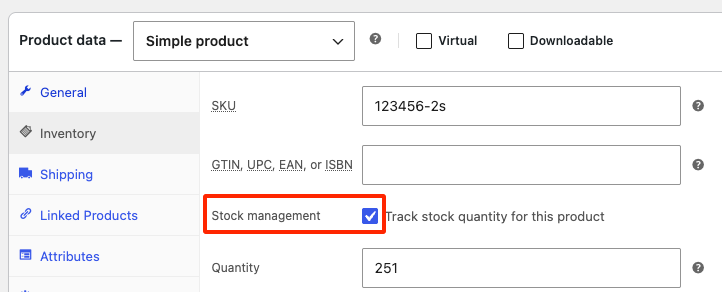
Enabling stock management in WooCommerce: for the sync to work, the Stock management checkbox must be ticked in WooCommerce on the products you want to sync.
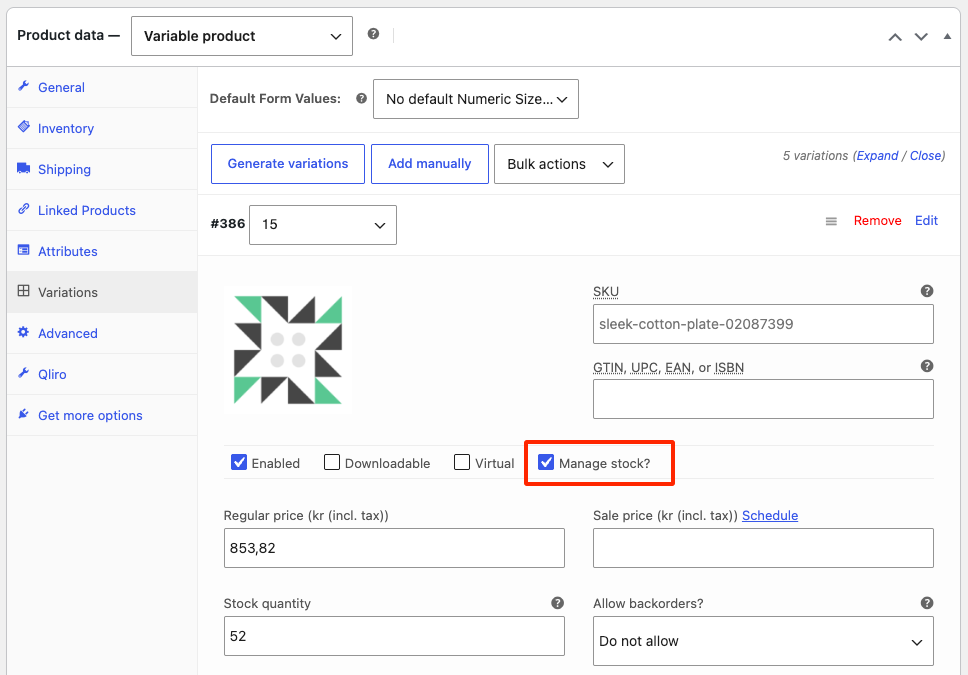
Note that for variable products, the Enable stock management at product level box must not be ticked. Instead, you enable Manage stock on each individual variation.
Changing a stock level in Specter
In Specter you can adjust a product’s stock level, either through a goods-in (“inleverans”) or through a Balance/Price adjustment (“Saldo-/Prisjustering”). To do this:
- Log in to your Specter account, then navigate to → Lager → Lager and select Inleverans or Saldo- / Prisjustering..
- Search for the article you want to change.
- Change the quantity you have received, or the quantity that should be in stock (depending on whether you did a goods-in or a balance adjustment).
- Click Spara.
Note that the number of articles in stock is not necessarily the same as the number of available articles (the stock level shown in the web shop).
For example – you have 10 units in stock of an article number. At the same time, 2 units have been purchased (and exist as orders in Specter) but have not yet been shipped to the customer. The quantity in stock will still be 10, but the number of available units will be 8.
Purchase of a product in a physical store
If you have a physical store and use Specter’s POS (“Butikskassa”), the stock level syncs between the physical store and the web shop.
When a purchase is made via the POS, the stock level change is reported to Specter, which then syncs it to WooCommerce using the same flow described in How the sync works above.
New product in WooCommerce
This only applies if you have a workflow active for product synchronization in the direction WooCommerce → Specter, and stock level sync is configured in the mapping of your workflow.
When you create a new product in WooCommerce (where the article number does not already exist in Specter), the stock level is sent along to Specter – provided this is enabled in the mapping function in Kroconnect. After that, you cannot adjust the stock level from the web shop; this must be done from Specter, since Specter is the master for stock level management.
New order in WooCommerce
When a new order is created in WooCommerce, WooCommerce adjusts the stock level automatically. At the same time as the order is reported to Specter, the available stock level in Specter is reduced for the products included in the order.