Specter
Kroconnect
Specter to WooCommerce – product sync
Last modified:
Activation of the workflow for syncing products from Specter to WooCommerce is currently done with the help of Kroconnect staff.
We do not recommend having product sync active in both directions, to avoid the two systems overwriting each other’s changes in a loop. Choose one system as the master per field.
How the sync works
When updates are made in Specter, information is sent to WooCommerce. Products are matched between the systems by article number (SKU), which is the unique key linking a Specter article to a WooCommerce product. Products with a matching article number are updated automatically.
The standard fields that are synced are:
- Title (Benämning in Specter)
- Weight
- Price
- Sale price
Product data can be modified through the mapping function in Kroconnect for most product data fields.
Updates are typically reflected in WooCommerce within moments, and usually within a minute — the exact time depends on the current workload of both Specter and Kroconnect.
Creating missing products
By default, this sync only updates products that already exist in WooCommerce; it does not create new ones. If you want Specter to create products that don’t yet exist in WooCommerce, enable the Create missing products setting on your WooCommerce Connection in Kroconnect. When enabled, a product that exists in Specter but not in WooCommerce is created in WooCommerce as a draft.
Products created this way are created as simple products. Creating variable products this way is not currently supported.
Enabling a sale price on a product
Specter has no dedicated “sale price” field. Instead, the Ordinarie pris (regular price) acts as the struck-through original, and the Enhetspris (unit price) becomes the active sale price. To create a sale, you move the current price down to Ordinarie pris and enter the lower sale price as the Enhetspris.
- Log in to your Specter account.
- Navigate to the article you want to change.
- If you haven’t set a sale price before, only the Enhetspris (unit price) incl. and excl. VAT fields are filled in. The field Ordinarie pris might be set to 0 if you have not worked with sale prices earlier.
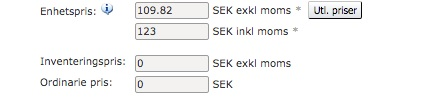
- Move the Enhetspris exkl. moms (unit price excl. VAT) into the Ordinarie pris (regular price) field.
- Enter the sale price excl. VAT in the Enhetspris exkl. moms field.

- Save the article.
- The product now shows the sale price in WooCommerce.

Removing a sale price
Move the price back from Ordinarie pris (regular price) into the Enhetspris exkl. moms field.