Installation and configuration
Kroconnect
Dintero
Last modified:
The Dintero integration brings your settlements into Kroconnect. Kroconnect reads the settlement and payout data from your Dintero account, so the money that lands in your bank account can be reconciled against your orders and booked in your accounting system.
No self-serve onboarding yet. The Dintero Connection is created for you by the Kroconnect team. What you do yourself is create the API credentials in Dintero and add them to the Connection — that is what this page covers. Contact us to get the integration set up.
How the setup runs
- We create the Connection. The Kroconnect team adds a Dintero Connection to your account, along with the workflow that fetches your settlements.
- You create API credentials in Dintero. A dedicated API client with the settlement scopes — see Creating API credentials in Dintero below.
- You add the credentials to the Connection. In the Kroconnect app, on the Dintero Connection we created — see Adding the credentials to the Connection.
- We verify the first run together with you, and activate the workflow.
Prerequisites
- An active Dintero account, with access to Dintero Backoffice as a user who may create API clients.
- A Dintero Connection on your Kroconnect account, created by the Kroconnect team.
- An active Kroconnect account.
Creating API credentials in Dintero
Your payment credentials are usually not enough. The API client you already use for taking payments — the one in your checkout plugin — is normally created with the
checkoutscopes only. Settlements are a different part of the Dintero API, so you need to set up a new API client specifically for settlements, with the scopes below.Keeping it separate is also the safer arrangement: if the settlement credentials ever have to be replaced, your checkout keeps working.
Step 1 — Open API clients in Dintero Backoffice
In Dintero Backoffice, go to Settings (“Inställningar”) → API & Webhooks → API clients (“API-klienter”), and create a new client.
Give it a name that tells you what it is for later — Kroconnect settlements, for example.
Mind the account you are in. Dintero has a separate test environment, switched with the Test mode (“Testläge”) toggle at the top of Backoffice. An API client belongs to the account it was created in, so a client created in test mode will not work against production data. Unless we have asked you for test credentials, create the client with test mode off.
Step 2 — Set the permissions
The client’s permissions are set in the Permissions (“Rättigheter”) grid, where each row is a Dintero service and the three columns are Administrator (“Administratör”), Write access (“Skrivåtkomst”) and Read access (“Lästillgång”).
Tick all three boxes on these three rows:
| Row | Description in Dintero | Tick |
|---|---|---|
billing | Invoicing (“Fakturering”) | Administrator, Write access, Read access |
payout | Payout service (“Utbetalningstjänst”) | Administrator, Write access, Read access |
reports | Reports (“Rapporter”) | Administrator, Write access, Read access |
Leave every other row unticked — checkout, accounts, customers and the rest are not used for settlements.
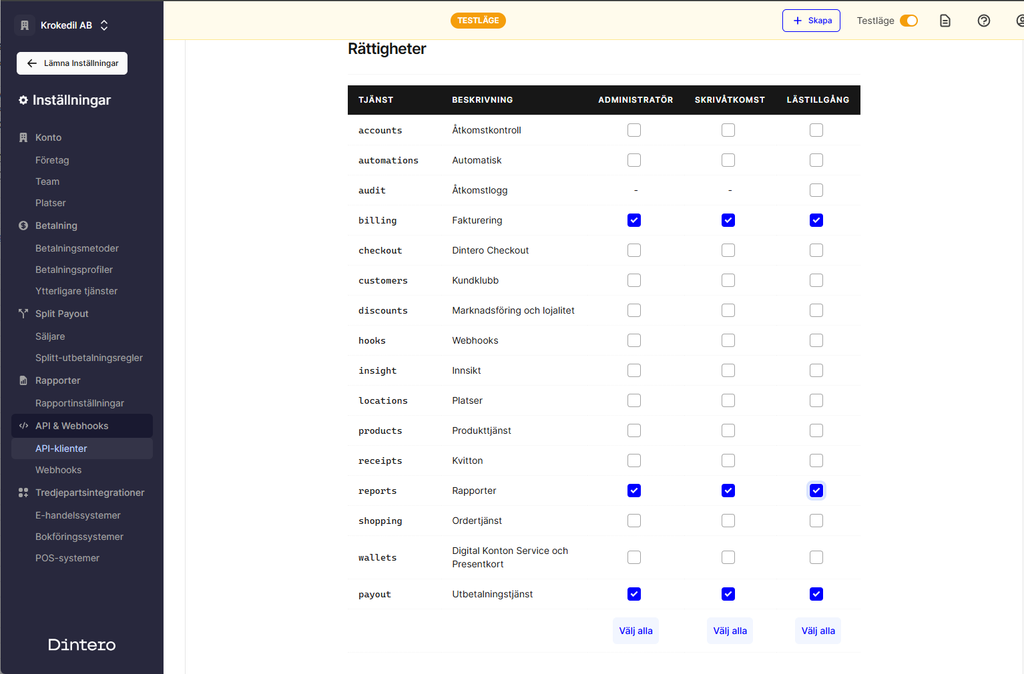
The Permissions grid in Dintero Backoffice, with all three boxes ticked on the billing, reports and payout rows.
That gives the client these nine scopes:
admin:billing
admin:payout
admin:reports
read:billing
read:payout
read:reports
write:billing
write:payout
write:reports
If you are creating the client through the Dintero API rather than in Backoffice, that list is what you request directly.
Step 3 — Copy the credentials
Save the client, and copy the values Dintero shows you — the Client ID, the Client secret and your Account ID.
The client secret is only shown once. If you close the dialog without copying it, you cannot read it again — you have to create a new client, or rotate the secret on the existing one.
Adding the credentials to the Connection
Open the Kroconnect app → Connections, and click the pencil icon on your Dintero Connection.
The credential fields are locked and masked. Click the padlock at the end of a field to unlock it — the field empties, and you paste the new value in. Then save the panel.
Unlocking clears the field. A secret you unlock but leave empty is saved as empty, which breaks the Connection. If you open a padlock by mistake, close the panel without saving and start again — nothing is written until you save. See Connections for how the panel works in general.
Paste carefully: a trailing space is enough to make authentication fail, and the Client ID and Client secret always have to be replaced as a pair.
Tell us once the credentials are in place and we will run the settlement workflow and check the result with you.
When to replace the credentials
Create a new API client and work through the steps above again when:
- the API client was deleted in Dintero, or its secret was rotated;
- the client was created with the payment scopes only, so Kroconnect cannot read settlements;
- the client was created in the wrong Dintero account — test instead of production, or a different company account;
- your Kroconnect logs show
401or403responses from Dintero.
Don’t delete the old client until the new credentials are confirmed working.
Troubleshooting
Dintero answers 401 Unauthorized
The Client ID or the Client secret is wrong, or the client no longer exists in Dintero. Check that both values were pasted in full and without stray whitespace, and that the client is still listed under API clients in Backoffice. If a brand new client still gives 401, verify the Account ID on the Connection — credentials from one Dintero account will not authenticate against another.
Dintero answers 403 Forbidden
The client authenticates but isn’t allowed to read what was asked for. This is almost always missing scopes: the client was created with the payment scopes, or only part of the billing / payout / reports grid was ticked. Check the client’s permissions in Backoffice against Step 2.
The credentials work, but no settlements come through
Check that you are pointing at the right environment. A test-mode client authenticates fine but sees only test data, so the runs succeed while returning nothing. Also check with us that the settlement workflow is activated on your account — it is enabled by the Kroconnect team after the first verified run.
A change won’t take effect
Changes to a Connection apply to the next run of every workflow that uses it; runs already in progress use the old values. See Searching the logs for a product for how to find a run and read what Dintero answered.
See also
- Connections — how to edit a Connection and replace masked credentials.
- How Kroconnect works — Connections, Workflows, mapping and triggers.
- The Kroconnect app — where Connections and Workflows are managed.