Installation and configuration
Kroconnect
CDON
Last modified:
The CDON integration publishes your WooCommerce products to the CDON marketplace. Kroconnect reads each product from your store and creates or updates the matching article and offer in CDON — with the properties, category, price, offer status and shipping times CDON requires.
The sync runs one article at a time, triggered by a product save or by a manual click in WooCommerce. It is one-way: WooCommerce is the source, CDON is the destination.
No self-serve onboarding yet. The CDON Connection and the product sync Workflow are created for you by the Kroconnect team. What you do yourself is the WooCommerce side — enabling the integration, mapping your attributes, and setting the CDON fields on your products. That is what this page covers. Contact us to get the integration set up.
Orders placed on CDON are not imported into WooCommerce by this integration. If you want CDON orders to reach WooCommerce or your ERP, tell us — that is a separate Workflow.
How it works
- You configure the store once. Enable the integration, enable the markets you sell on, and map your product attributes to the CDON properties they correspond to.
- You set the CDON fields on each product. Category, shipping times, and an offer status per market. Variations inherit the status from the product unless you override it.
- A product save, or a click on the sync button, calls the Workflow in the Kroconnect platform, one call per article.
- Kroconnect fetches the article from your store over the WooCommerce REST API and sends it to CDON.
Simple products and variable products
CDON models a variant group as a set of articles that share a parent SKU — there is no separate parent article. The integration follows that model:
- A simple product is one article. Its own SKU identifies it.
- A variable product is never sent as itself. Each variation is one article, and they are grouped by the parent’s SKU. Fields that belong to the whole group — the CDON category and the shipping times — are set on the product and used by every variation.
- Variations that CDON needs to tell apart are separated by their variational properties, which come from the parent’s variation attributes. This is why attribute mapping matters: an unmapped attribute means CDON receives variants it cannot distinguish.
Parent SKU. The parent product’s SKU is used as the group identifier. If your variable products have no SKU on the parent, Kroconnect falls back to a stable value derived from the product ID (
wc-123), so grouping still works — but a real SKU is easier to recognise in CDON.
Prerequisites
- The Kroconnect WooCommerce Connector plugin, installed and activated.
- An active CDON merchant account with API access.
- An active Kroconnect account with a CDON Connection and a product sync Workflow, both created by the Kroconnect team.
- SKUs on the products you want to publish — on simple products, and on every variation of a variable product.
Integration settings
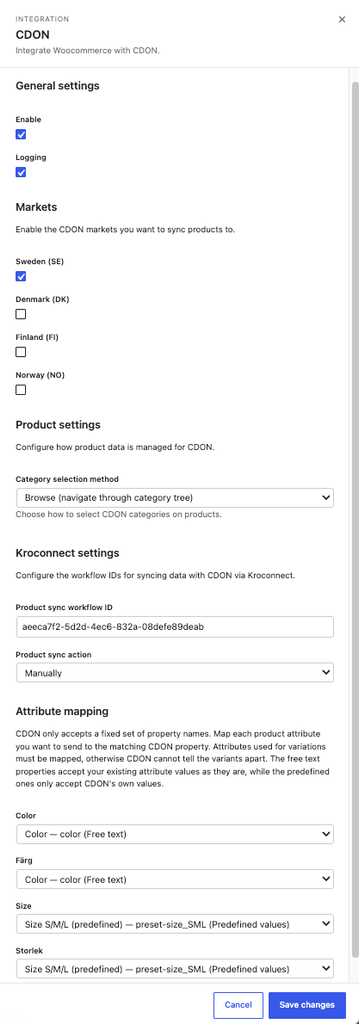
The CDON settings are found under Kroconnect → Integrations → CDON in the WordPress admin.
General settings
| Setting | Description |
|---|---|
| Enable | Turns the CDON integration on or off. When it is off, the CDON tab and the sync are not added to your products at all. |
| Logging | Writes CDON-related messages to the WooCommerce log for troubleshooting. |
Markets
Tick the CDON markets you sell on. Each enabled market adds its own status, price and shipping time fields to your products.
| Market | Currency | Language |
|---|---|---|
| Sweden (SE) | SEK | sv-SE |
| Denmark (DK) | DKK | da-DK |
| Finland (FI) | EUR | fi-FI |
| Norway (NO) | NOK | nb-NO |
Only enable the markets you actually sell on. Every enabled market multiplies the fields on the product screen, and a market with no status set on a product simply doesn’t produce an offer.
Product settings
| Setting | Description |
|---|---|
| Category selection method | How the CDON category is picked on the product. Search gives you a search field — start typing and select from the matches. Browse gives you cascading dropdowns you step through, one level of the category tree at a time. |
Kroconnect settings
| Setting | Description |
|---|---|
| Product sync workflow ID | The Workflow ID in the Kroconnect platform that sends a product to CDON. Required — without it nothing syncs, manually or automatically, and the CDON Sync box is not shown on products. |
| Product sync action | When a product should sync automatically. When a product is updated or created, Only when a product is created, Only when a product is updated, or Manually (no automatic sync — you use the button). |
Attribute mapping
CDON does not accept arbitrary property names. It has a fixed vocabulary — color, size, material, shoe_size_eu and so on — so your WooCommerce attribute names (“Färg”, “Storlek”) cannot be passed through as they are.
The settings list one dropdown per global product attribute in your store. For each one, pick the CDON property it corresponds to, or leave it on — Do not send to CDON —.
See Mapping attributes to CDON properties below for what the three property types mean and which values they accept.
The mapping applies to simple products too. Every mapped attribute becomes a property on the article — a simple product’s own attributes, and for a variation its variation values plus the parent’s non-variation attributes. What differs is the consequence of leaving one unmapped: on a variable product CDON ends up with variants it cannot tell apart, while on a simple product you only lose a property shoppers could have filtered on.
An attribute that holds more than one value is skipped even when mapped, because CDON takes a single value per property. “Material: Cotton, Elastane” therefore sends nothing — the product screen warns about it.
Setting it up
Step 1 — Enable the integration and your markets
Open Kroconnect → Integrations → CDON, turn on Enable, and tick the markets you sell on. Turn on Logging as well while you get started.
Paste the Product sync workflow ID we gave you, and choose a Product sync action. Start on Manually while you configure your first products — that way nothing is sent to CDON until you click the button yourself.
Step 2 — Map your attributes
Still in the CDON settings, work through the Attribute mapping section. Start with every attribute you use for variations — colour, size, and anything else that separates one variant from another; those are the ones CDON cannot do without.
Then map the rest of the attributes worth sending. They apply to simple products and variants alike, and give CDON properties shoppers can filter on.
Step 3 — Fill in the CDON fields on a product
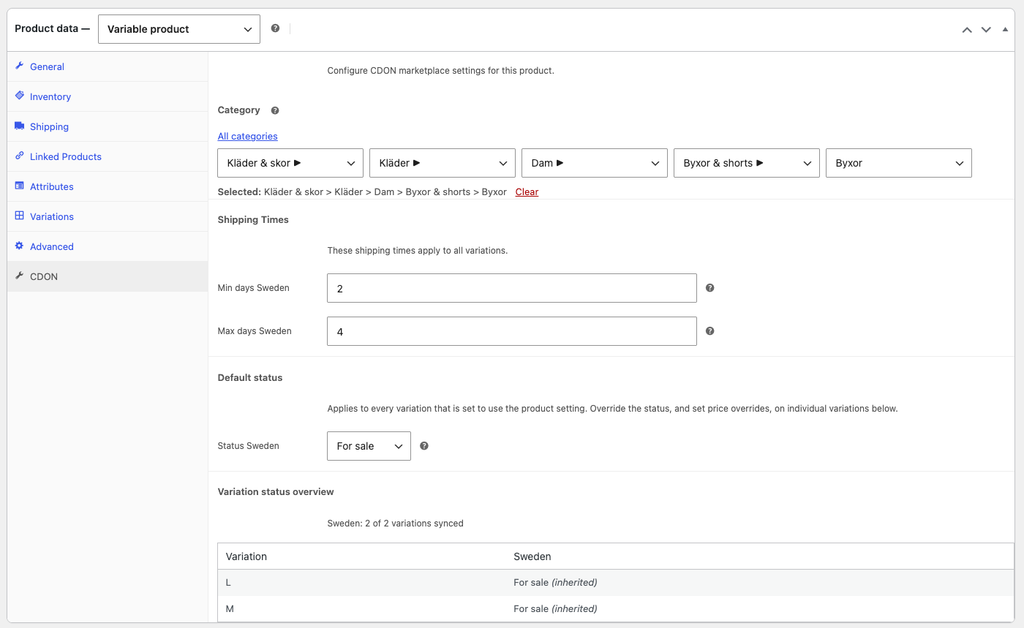
Open a product and go to its CDON tab, in the product data box. Set the category, the shipping times and the offer status. The fields are described in Product settings below.
Step 4 — Sync one product and check the result
Click Sync product (or Sync all variations) in the CDON Sync box on the product edit screen, then check in CDON that the article arrived and looks right. If it didn’t, see Troubleshooting.
Step 5 — Turn on automatic sync
When your first products look correct in CDON, set Product sync action to When a product is updated or created. From then on, saving a product sends it to CDON — see What triggers a sync for exactly which saves do.
Publishing your whole catalogue. The plugin syncs a product when it is saved or when you click the button; there is no scheduled full-catalogue push. If you need an initial bulk publish of an existing catalogue, talk to us.
Product settings on a product
The CDON tab appears in the product data box when the integration is enabled and at least one market is enabled.
Category
The CDON category the article belongs to. One category per product, shared by all of its variations. Depending on the Category selection method setting you either search for it or browse the tree.
The category list is bundled with the plugin, currently for the Swedish market. The picker uses the language of your first enabled market — so if you have enabled a market other than Sweden and the picker returns nothing, contact us.
Shipping times
Min days and Max days per market: how long you promise delivery to take, as whole days from 1 to 9. Both are required for the article to be accepted, and on a variable product they apply to every variation.
Status and price — simple products
For each enabled market:
| Field | Description |
|---|---|
| Status | For sale — the offer is active on CDON. Paused — the offer exists but is not for sale. Do not sync — the product is excluded from CDON entirely. |
| Price | An optional price override in the market’s currency. Leave it empty to use the WooCommerce price. |
Paused is what takes an offer off sale. Do not sync only stops Kroconnect from sending the product — it does not change or remove an offer that is already live in CDON. To stop selling something you have already published, set it to Paused and sync it once more.
Markets in another currency. The plugin doesn’t convert prices. If your store sells in SEK and you also publish to Denmark, Finland or Norway, set a price override for those markets — or run a multi-currency setup and tell us how the price should be resolved.
Default status — variable products
A variable product gets a Default status per market instead. Every variation that is set to Use product setting follows it, so you can onboard a whole variable product with one dropdown per market rather than one per variation.
Below the statuses, the tab shows:
- Attribute mapping warnings — variation attributes with no CDON property, attribute values that don’t match any value CDON accepts for the mapped property, and non-variation attributes holding several values (CDON takes one value per property, so those are skipped).
- Variation status overview — a table of the variations with their effective status per market, which ones are inherited, and which ones are missing a SKU.
Status and price — variations
Each variation has a CDON Settings section with, per market:
| Field | Description |
|---|---|
| Status | Use product setting (…) — inherit the product’s default, which is the label’s parenthesis. Or override it with For sale, Paused or Do not sync. |
| Price | An optional price override for this variation, in the market’s currency. Never inherited. |
Setting the status on many variations at once
The Variations tab’s bulk action dropdown gets a CDON status: <market> group per enabled market, with Set to For sale, Set to Paused, Set to Do not sync and Use product setting (which clears the override so the variation inherits again).
The action is applied to the variations immediately, and does not queue a sync. Sync the product afterwards from the CDON Sync box.
The CDON column in the products list
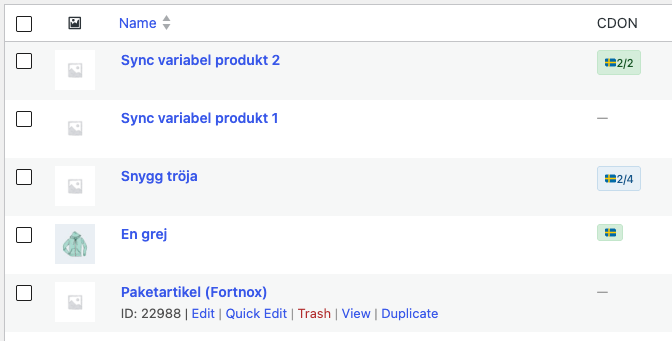
The products list gets a CDON column next to the product name, showing one badge per market that has something to sync:
| Badge | Meaning |
|---|---|
| 🇸🇪 (green) | Simple product, for sale on that market. |
| 🇸🇪 (yellow) | Paused on that market. On a variable product, that none of the syncing variations are for sale. |
| 🇸🇪 5/5 (green) | Variable product — all 5 variations are set to sync. |
| 🇸🇪 3/5 (blue) | Variable product — 3 of 5 variations are set to sync. |
| — | Nothing is configured for CDON sync. |
Hover a badge for the market name, the status and the time of the last sync.
Syncing
Manual sync
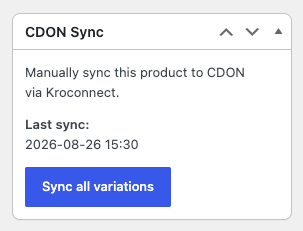
The CDON Sync box on the product edit screen has one button:
- Sync product on a simple product — sends it straight away.
- Sync all variations on a variable product — sends every variation that qualifies, straight away.
The box also shows the last sync time, and the button is disabled when there is no market set to sync, or when the product was synced less than 5 minutes ago.
What has to be true for an article to sync
An article is sent only when all of these hold:
- The integration is enabled and a Product sync workflow ID is set.
- The article — the simple product, or the variation — has a SKU.
- Its effective status on at least one enabled market is For sale or Paused.
Beyond that, CDON itself requires a category, shipping times, a title of 5–150 characters and a description of at least 10 characters. A product missing those is sent but rejected by CDON, which shows up in the Workflow run in the Kroconnect app.
What triggers a sync
Automatic sync also requires Product sync action to be something other than Manually.
| What you do | What syncs |
|---|---|
| Click Sync product on a simple product | That product, immediately |
| Click Sync all variations on a variable product | Every qualifying variation, immediately |
| Save a variable product in the WordPress admin | One queued sync per qualifying variation |
| Save a single variation | That variation |
| Save a simple product | That product |
| Save a variable product over the REST API | Nothing — see the note below |
| A customer places an order that reduces stock | The variation’s own save covers the stock change; the product is not fanned out |
Automatic syncs are queued as scheduled actions and run in the background within about a minute. Manual syncs run immediately.
Parent-level changes made over the REST API don’t reach CDON. A variable product is not an article in CDON, so a change to its shared fields — the category, the shipping times, the default status — only reaches CDON by being pushed out to each variation, and that fan-out deliberately only runs for edits made in the WordPress admin or via WP-CLI. If you maintain products over the REST API (from a PIM, for example), use Sync all variations, save the product in the admin, or have a developer widen the behaviour with the
kroconnect_cdon_sync_variations_on_parent_savefilter.
Mapping attributes to CDON properties
CDON’s properties come in three flavours, and the dropdown in the settings groups them accordingly. The label shows the property name and its type, for example Color — color (Free text).
Free text
Any value is accepted, in the language of your first enabled market. Values longer than 36 characters are truncated.
color, connection_type, flavor, material, pattern, phone_case_type, size
This is the safe default: your existing attribute values are sent as they are.
Numerical
The value is sent as a number. Kroconnect extracts the number from your attribute value, so “42 cm” is sent as 42 and “10,5” as 10.5. An attribute value with no number in it is skipped.
shoe_size_eu, shoe_size_uk_men, shoe_size_uk_women, shoe_size_us_men, shoe_size_us_women, size_cm, size_gb, size_m, size_mm, size_unit, volume_l, volume_ml, weight_g, weight_kg
Predefined values
The value must be one of CDON’s own values. Kroconnect matches your attribute’s slug or its name against them, ignoring case and the difference between -, _ and a space — so a term with the slug usb-c, usb_c or usb c all match CDON’s usb-c. A value with no match is skipped, and the product screen warns you about it.
| Property | Accepted values |
|---|---|
preset-color | red, blue, green, orange, yellow, purple, pink, gold, silver, multicolor, white, gray, black, turquoise, brown, beige, transparent |
preset-connection_type | bluetooth, usb-c, micro-usb, lightning, 3.5mm |
preset-hair_type | dry hair, normal hair, curly hair, damaged hair, frizzy hair, fine hair, dry scalp, dyed hair |
preset-media_format | dvd, blu-ray, 4k ultra hd, cd, vinyl |
preset-pattern | abstract and geometry, animals and animal patterns, nature and environment, plants and fruit, space and scifi, text and quotes, camouflage, glitter, marble and stone, vehicles, flags and symbols, maps, characters and celebrities, fantasy, retro |
preset-refurb_grading | a+, a, b, c |
preset-refurb_warranty | 2, 6, 12, 24 |
preset-size_SML | one size, xxs, xs, s, m, l, xl, xxl |
preset-skin_type | dry skin, normal skin, mature skin, oily skin, mixed skin, acne |
Free text or predefined? A predefined property gives CDON a value it can filter and facet on, which is worth having. But it only works if your terms line up with CDON’s values — if your colour terms are Swedish (“Röd”), map the attribute to the free text
colorinstead, or give the terms English slugs. The product screen tells you which values wouldn’t be accepted.
Product-level attributes
Only global attributes can be mapped in the settings, since product-level (“custom”) attributes aren’t registered anywhere central. Those are mapped with the kroconnect_cdon_attribute_property_map filter — see For developers.
Titles and descriptions
CDON has length limits that WooCommerce does not, so Kroconnect resolves both fields before sending them.
Title (5–150 characters). A simple product uses its name. A variation uses <product name> - <attributes> — the same title WooCommerce shows for the variation. If that is too long, the product name is trimmed and the attribute suffix kept, since the suffix is the only thing separating one variant from another in a CDON listing.
Description (10–4096 characters). For a variation, the first of these that qualifies is used:
- The variation’s own description, if you filled one in.
- The product’s short description.
- The product’s full description.
A description that fits is sent untouched. A description that is too long has its formatting removed before it is truncated.
Give your variations a description path. A variation has no short description of its own, so if your products rely on the short description, make sure the parent has one — otherwise CDON gets the full description, or nothing.
Troubleshooting
The CDON tab doesn’t appear on my products
Either the integration isn’t enabled, or no market is enabled. The tab says which. Both are set under Kroconnect → Integrations → CDON.
The CDON Sync box doesn’t appear
The Product sync workflow ID is empty. Nothing syncs — manually or automatically — until it’s filled in.
The Sync button is greyed out
Either no market on the product is set to For sale or Paused, or the product was synced less than 5 minutes ago. The box tells you which.
Nothing happens when I save a product
Check Product sync action — on Manually nothing is sent automatically. Also remember that saving a variable product over the REST API doesn’t reach its variations; see What triggers a sync.
A variation was skipped
The two usual reasons are a missing SKU and a status that resolves to Do not sync on every enabled market. The Variation status overview on the CDON tab shows both. With Logging on, the skip is also written to the log with the reason.
CDON rejects the article
The Workflow run in the Kroconnect app holds CDON’s own response — see Searching the logs for a product. The common causes are a missing category, missing shipping times, a description shorter than 10 characters, and attribute values that didn’t resolve to anything CDON accepts.
The variants aren’t grouped in CDON, or look identical
The variation attributes aren’t mapped to CDON properties, so CDON gets variants with nothing to tell them apart. The CDON tab warns about it, and with Logging on it is written to the log as well. Map them under Attribute mapping, then sync the product again.
Where the logs are
With Logging enabled, messages are written to the WooCommerce logs — WooCommerce → Status → Logs in the WordPress admin. What Kroconnect sent to CDON, and what CDON answered, is in the Workflow run in the Kroconnect app.
For developers
The connector resolves everything CDON needs onto the WooCommerce REST API, under kroconnect.cdon on the product and variation responses:
| Field | Description |
|---|---|
parent_sku | The variant group identifier. Omitted for simple products. |
category | The CDON category, inherited from the parent for variations. |
language | The language used for free text properties. |
title | The resolved title, within CDON’s length limits. |
description | The resolved description, within CDON’s length limits. |
properties | The product’s attributes as CDON property entries. |
variational_properties | The property names that differentiate the variants. |
markets | Per market: status, whether it is syncable, currency, language, price override and shipping times. |
sale_markets | The market codes the article is set to sync to. |
Optional fields are omitted rather than sent empty, because CDON rejects them when they are present but blank.
Filters:
| Filter | Purpose |
|---|---|
kroconnect_cdon_properties | Add to the CDON property vocabulary. |
kroconnect_cdon_attribute_property_map | Map product-level (custom) attributes to properties. |
kroconnect_cdon_property_language | Override the language used for free text properties. |
kroconnect_cdon_product_properties | Change the resolved properties array. |
kroconnect_cdon_variational_properties | Change the resolved variational_properties. |
kroconnect_cdon_parent_sku | Change the variant group identifier. |
kroconnect_cdon_title | Change the resolved title. |
kroconnect_cdon_description | Change the resolved description. |
kroconnect_cdon_rest_data | Change the whole kroconnect.cdon block. |
kroconnect_cdon_sync_variations_on_parent_save | Control whether saving a variable product fans out to its variations. |
kroconnect_cdon_variation_summary_limit | Number of rows in the variation status overview. |
Example — let REST API updates of a variable product reach its variations:
add_filter(
	'kroconnect_cdon_sync_variations_on_parent_save',
	function ( $fan_out, $product ) {
		// A PIM maintains the products on this store over the REST API.
		return $fan_out || ( defined( 'REST_REQUEST' ) && REST_REQUEST );
	},
	10,
	2
);
Example — map a product-level attribute named “Material”:
add_filter(
	'kroconnect_cdon_attribute_property_map',
	function ( $map ) {
		$map['material'] = 'material';
		return $map;
	}
);
See also
- Kroconnect WooCommerce Connector — the plugin, and the REST API data Kroconnect reads.
- How Kroconnect works — Connections, Workflows, mapping and triggers.
- Searching the logs for a product — finding what happened to one product.