Setup and configuration
Kroconnect
nShift Checkout 2.0
Last modified:
Overview
nShift Checkout 2.0 is a shipping method integration that connects your WooCommerce store to your nShift account. During checkout, available shipping services and delivery options are fetched in real time from nShift and presented to the customer. This includes support for pickup point selection, where customers can choose a specific collection point from those returned by nShift.
Prerequisites
- An active nShift account with Checkout 2.0 enabled.
- A Client ID and Client Secret from nShift (used for API authentication).
- A Connection ID for each shipping zone or service you want to expose.
Integration settings
Go to WooCommerce → Kroconnect → nShift Checkout 2.0 to configure the integration.
| Setting | Description |
|---|---|
| Enable | Activates the nShift Checkout 2.0 integration. |
| Client ID | Your nShift API Client ID, used to authenticate requests. |
| Client Secret | Your nShift API Client secret. Stored securely. |
| Logging | Enables logging of API requests and responses, useful for troubleshooting. |
Saving the settings clears any cached access tokens, so changes take effect immediately.
Shipping method setup
The nShift Checkout 2.0 shipping method is added and managed under WooCommerce → Settings → Shipping. Add it to a shipping zone like any other WooCommerce shipping method.
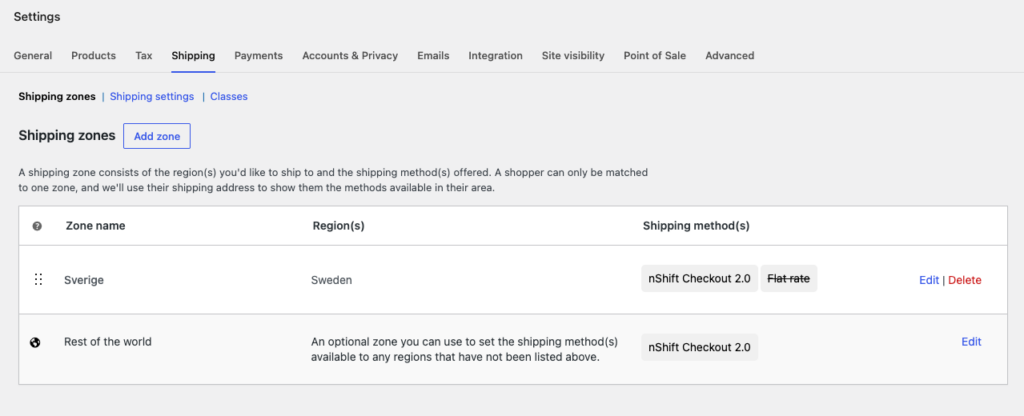
Each shipping method instance has the following settings:
| Setting | Description |
|---|---|
| Title | Internal label for this method instance. Not shown to customers — names and prices come directly from nShift. |
| Connection ID | The nShift Connection ID that determines which shipping services are available. You can add multiple instances with different Connection IDs to serve different zones or customer segments. |
How it works at checkout
When a customer reaches the checkout page, Kroconnect creates a session with nShift using the configured Connection ID. Available shipping services for the customer’s destination are fetched and displayed as selectable options, including price, carrier branding, certifications, and badges where applicable.
If a service supports pickup points (e.g., parcel lockers or collection points), the customer is presented with a pickup point selector after choosing that service. The selected pickup point is stored on the order for use during shipment booking.
Managing Shipping on Orders
On the WooCommerce order edit page, a dedicated section shows the shipping service selected at checkout. From here you can:
- View the selected shipping service and product ID.
- View the selected pickup point and its details.
- Change service — re-fetch available options from nShift and select a different service or pickup point before booking.
Changes made here update the order’s shipping data and are used when the shipment is subsequently booked through nShift Delivery (or a separate system like Ongoing).
Where the shipment data is stored
Everything the customer picked at checkout is stored on the order’s shipping line, as item meta — not as order meta. Each shipping line the order has carries its own set of fields, so the choice is kept together with the shipping row it belongs to, and an order with two shipping lines can carry two separate selections.
This is the data every later step reads: the booking of the shipment in nShift Delivery, the order data Kroconnect fetches over the WooCommerce REST API (where the same fields appear under shipping_lines → meta_data), and any third-party system that needs to know which service and pickup point was chosen.
| Meta key | Holds |
|---|---|
nshift_shipping_product_id | The ID of the nShift shipping service the customer chose. This is the value that identifies the service when the shipment is booked. |
nshift_shipping_product | The full service as returned by nShift, as JSON — carrier, name, price and the rest of the properties belonging to the chosen option. |
nshift_sender_quick_id | The sender (Quick ID) the shipment should be booked from. Only set when the chosen service is tied to a specific sender. |
krokedil_pickup_points | All pickup points nShift returned for the chosen service, as JSON. |
krokedil_selected_pickup_point | The pickup point the customer selected, as JSON — name, address, and the other details nShift provided for it. |
krokedil_selected_pickup_point_id | The ID of the selected pickup point. This is the value sent to nShift as the pickup location when the shipment is booked. |
Using Change service on the order rewrites these fields, so what is stored always reflects the current selection rather than the original one.
Tip: add
?debugto the order URL to see the fields. The pickup point fields are hidden on the order edit screen by default, since they are long JSON values that would otherwise clutter the shipping line. Adddebugto the querystring of the order you are looking at —…/wp-admin/admin.php?page=wc-orders&action=edit&id=12345&debug, or…/wp-admin/post.php?post=12345&action=edit&debugon stores still using the legacy order storage — and the shipping line shows the metadata exactly as it is stored.Adding
debugonly unhides fields; it changes nothing on the order. It is the quickest way to check what was actually saved when a shipment books with the wrong service or ends up at the wrong pickup point.