Setup and configuration
Synchronization
Plugin
WooCommerce to Fortnox – order
Last modified:
Activation of the workflow for sending orders from WooCommerce to Fortnox is currently done with the help of Kroconnect staff.
There is currently no dedicated Fortnox integration in the plugin. Until one is added (planned for later in 2026), Fortnox is connected using the generic ERP Integration in the Kroconnect WooCommerce Connector plugin. The settings referenced below are found under that integration.
How the sync works
The core of the WooCommerce/Fortnox integration is to send new orders from WooCommerce to Fortnox, which can be triggered in several ways.
Triggering an order sync
- Via the Order sync action setting in the ERP Integration.

The most common choice is On payment_complete(), but you can also send orders when the WooCommerce status changes to Processing or Completed. (You also need to enter your workflow ID in Order sync workflow ID.) - Via a WooCommerce webhook.
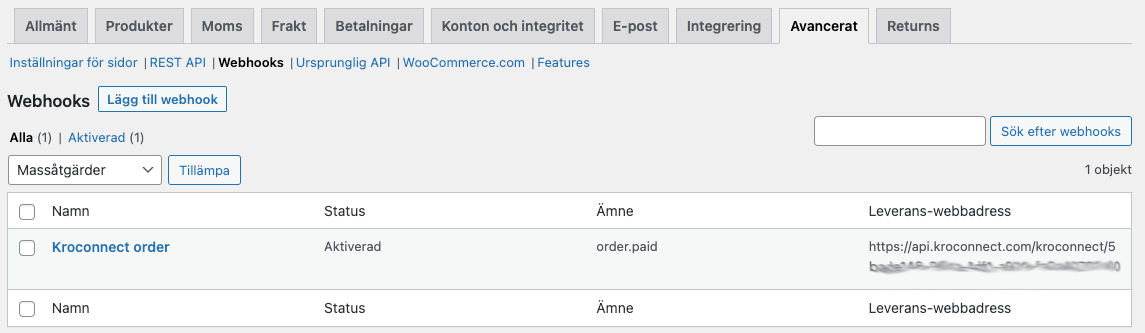
When creating the webhook, specify when it should trigger. The plugin includes an event called Order paid (which fires at payment_complete()) and is the recommended choice. The webhook URL ishttps://api.kroconnect.com/kroconnect/{your-workflow-id}, where you replace the placeholder with your actual workflow ID from app.kroconnect.com.
The Fortnox order number in WooCommerce
When Kroconnect sends an order from WooCommerce to Fortnox, the Fortnox order number is saved on the WooCommerce order. It appears in the order notes and can also be shown in a dedicated column on the orders list. To enable the column, in the ERP Integration:
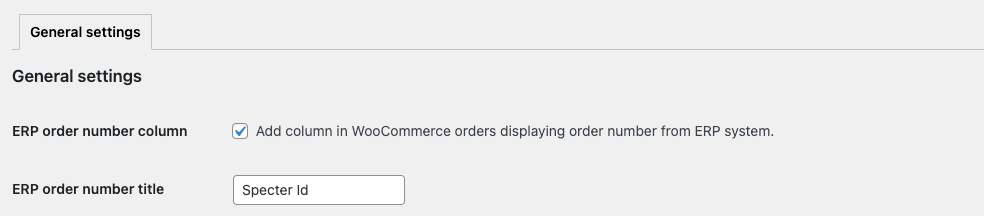
- Tick the Display ERP order number column checkbox.
- Enter your preferred column name in the ERP order number title field (the default is “ERP order number”).
Sending an order manually
If an order isn’t sent automatically, you can trigger it manually via an upload icon in the Actions column on the orders list. The row action is labelled Send order to Kroconnect. Click it to send the order; the order number appears within a few seconds on success (you may need to refresh the page).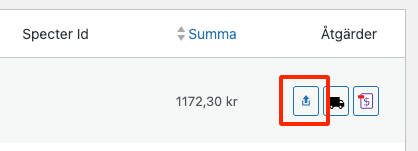
Creating an invoice in Fortnox (order status sync)
In addition to sending the order itself, the ERP Integration can send a second signal — an order status sync — when a WooCommerce order reaches a certain status. A common use case is to create an invoice in Fortnox for an order that was already created there.
A typical two-step setup looks like this:
- Order set to Processing in WooCommerce → the order is sent to Fortnox and created as an order there. Configured via Order sync action → When WooCommerce order status changes to Processing.
- Order set to Completed in WooCommerce → the order status is sent to Fortnox, which creates an invoice for the order created in step 1. Configured via Order status sync action → When WooCommerce order status changes to Completed.
This uses two separate workflows, so you configure two workflow IDs in the ERP Integration:
- Order sync workflow ID — for creating the order (step 1).
- Order status sync workflow ID — for creating the invoice (step 2).
The Order status sync action can trigger on Completed, Cancelled, Completed or Cancelled, or Manually. You can also trigger it manually from the orders list using the Send order status to Kroconnect action in the Actions column.